Invoices
Before you start
- The merchant account has the
collect-fundscapabilities for the payment methods the customer can use, such ascollect-funds.card-paymentsorcollect-funds.ach - The customer has a Moov account; you'll pass its ID as
customerAccountID - Optional: a product catalog for line items, and brand colors for the invoice email and payment link
With invoices you can:
- Create detailed line items
- Automatically generate secure payment links
- Send directly to customers via email
- Accept one-time payments via bank transfer or card
- Manually mark invoices as paid for off-platform payments
With the invoice API, you create an invoice with POST (it starts as a draft), then send it by setting its status to unpaid with PATCH. See create and manage invoices.
Invoice details
An invoice must always include the following details:
| Component | Description |
|---|---|
| Customer account ID | The ID of the customer account - a unique identifier. |
| Line items | A breakdown of items on the invoice, such as base price, price modifiers, and quantity. |
The response will include invoice-specific details, such as:
| Component | Description |
|---|---|
| Invoice ID | The ID of the invoice - a unique identifier. |
| Invoice number | Automatically generated and sequential per account, for example, INV‑1001. |
| Invoice date | The date the service or sale occurred (if set in the request). This can differ from when the invoice is sent. |
| Due date | When the payment is due to the merchant (if set in the request). |
See the create invoice endpoint for more details on required and optional fields.
Line items
Each invoice includes one or more line items that describe what's being charged. Line items can be products from the account’s product catalog, or free-from line items that support custom names, prices, and quantities.
When you use a productID, Moov attaches the associated product image from your catalog to the line item. You must still specify the basePrice for the line item, as the price from the product catalog is not used. You can also use the productID for your own reporting and tracking.
Amount details
In addition to the base price from line items, any additional tax and surcharge fees (for credit card transactions) can be added to amountDetails.
Invoice statuses
An invoice must be explicitly sent (status unpaid) to create its payment link and email the customer. When it's paid, Moov emails a receipt to the customer, notifies the merchant, and sends an invoice.updated webhook.
When an invoice is sent, Moov creates a unique, single-use payment link scoped to that invoice and customer, showing your business name and logo, the invoice details, and the total due. The payment creates a transfer; its ID is in invoicePayments.transfer.
| Invoice status | Meaning | Payment link status | Transfer status |
|---|---|---|---|
draft |
Created but not sent; every field can be edited | N/A | N/A |
unpaid |
Sent to the customer and awaiting payment | active |
N/A |
payment-pending |
The customer submitted payment and the transfer is in progress | disabled |
pending |
paid |
The transfer completed, or the invoice was marked as paid | disabled |
completed |
overdue |
Past its due date and unpaid; Moov emails the merchant | active |
N/A |
canceled |
Voided; the payment link shows "This invoice has already been paid or is no longer valid." | disabled |
N/A |
Email notifications
Invoices are attached to an email in PDF format and are sent in a variety of scenarios. Moov sends an email to the payer when the invoice status is updated to one of the following:
- Unpaid
- Paid (receipt)
- Overdue
- Payment failed
- Canceled
Additionally, an email is sent if the transaction has been refunded.
Moov sends an email to the merchant when an invoice status is updated to paid, or if it's manually marked as paid. Moov also notifies merchants if the invoice is overdue, or the payment transaction is disputed.
If a logo or brand colors have been added to the merchant's settings, they will be automatically added to the email. Below are examples of the emails a customer receives for an unpaid invoice and a paid invoice (receipt).
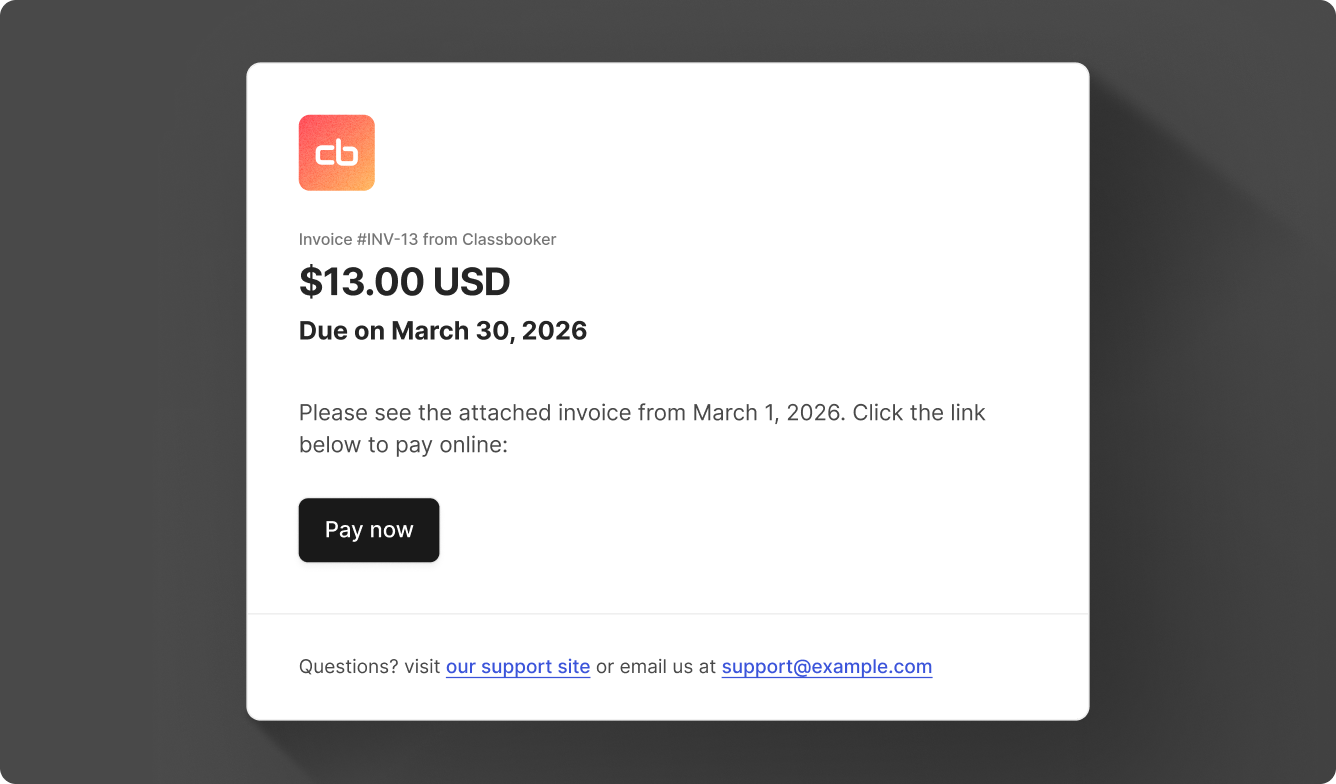
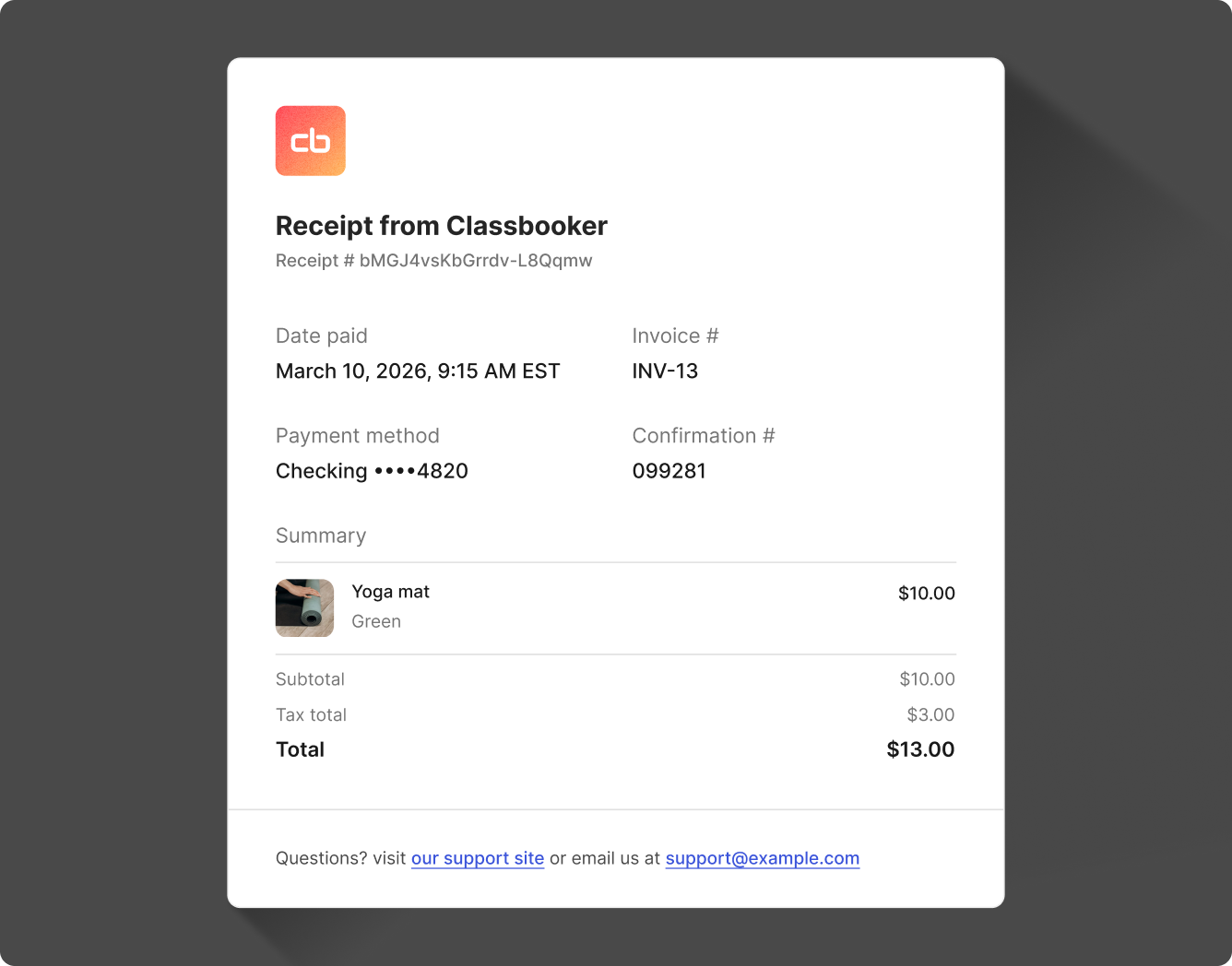
Create and manage invoices
Follow the steps below to create and manage invoices via the invoice API. Most of the endpoints in the invoice API will require you to pass the invoiceID which is returned in the create an invoice response.
Create invoice
Use the POST create invoice endpoint to create an invoice. You'll need to send the customerAccountID in the request body as well as create at least one line item. Tax and surcharge fees are optional.
curl -X POST "https://api.moov.io/accounts/{accountID}/invoices" \
  -H "Authorization: Bearer {token}" \
  -H "x-moov-version: v2026.07.00" \
  --data '{
    "customerAccountID": "d8b40343-5784-4096-8d40-9f3b4a834066",
    "description": "string",
    "lineItems": {
      "items": [
        {
          "name": "string",
          "basePrice": {
            "currency": "USD",
            "valueDecimal": "12.987654321"
          },
          "quantity": 1,
          "options": [
            {
              "name": "string",
              "quantity": 1,
              "priceModifier": {
                "currency": "USD",
                "valueDecimal": "12.987654321"
              },
              "group": "string"
            }
          ],
          "productID": "dbb08e34-cbbb-47d7-824b-bc71f5b00e6c"
        }
      ]
    },
    "amountDetails": {
      "surcharge": {
        "currency": "USD",
        "valueDecimal": "3.00"
      },
      "tax": {
        "currency": "USD",
        "valueDecimal": "7.00"
      }
    },
    "dueDate": "2025-08-24T14:15:22Z",
    "invoiceDate": "2025-08-24T14:15:22Z"
  }'
For surcharging, if you have provided Moov with a copy of your PCI attestation of compliance, you can check the card type with the get card metadata endpoint.
Optional: Update invoice
Use the PATCH update invoice endpoint to update an invoice's line items, tax amount, due date, invoice date, description, or status. Only invoices in the draft, unpaid or overdue status can be updated and the dueDate can only be updated if the invoice status is draft.
Note that setting an invoice's status to unpaid finalizes the invoice and sends an email with a payment link to the customer.
curl -X PATCH "https://api.moov.io/accounts/{accountID}/invoices/{invoiceID}" \
  -H "Authorization: Bearer {token}" \
  -H "x-moov-version: v2026.07.00" \
  --data '{
    "description": "string",
    "lineItems": {
      "items": [
        {
          "name": "string",
          "basePrice": {
            "currency": "USD",
            "valueDecimal": "13.987654321"
          },
          "quantity": 2,
          "options": [
            {
              "name": "string",
              "quantity": 1,
              "priceModifier": {
                "currency": "USD",
                "valueDecimal": "1.00"
              },
              "group": "string"
            }
          ],
          "productID": "dbb08e34-cbbb-47d7-824b-bc71f5b00e6c"
        }
      ]
    },
    "amountDetails": {
      "surcharge": {
        "currency": "USD",
        "valueDecimal": "3.00"
      },
      "tax": {
        "currency": "USD",
        "valueDecimal": "7.00"
      }
    },
    "dueDate": "2025-08-24T14:15:22Z",
    "invoiceDate": "2025-08-24T14:15:22Z",
    "status": "draft"
  }'
Send invoice
To send an invoice, you'll use the same PATCH update invoice endpoint as mentioned in the previous step. To send an invoice, set the status to unpaid. Setting an invoice's status to unpaid finalizes the invoice and sends an email with a payment link to the customer.
 1curl -X PATCH "https://api.moov.io/accounts/{accountID}/invoices/{invoiceID}" \
 2  -H "Authorization: Bearer {token}" \
 3  -H "x-moov-version: v2026.07.00" \
 4  --data '{
 5    "description": "string",
 6    "lineItems": {
 7      "items": [
 8        {
 9          "name": "string",
10          "basePrice": {
11            "currency": "USD",
12            "valueDecimal": "13.987654321"
13          },
14          "quantity": 1,
15          "productID": "dbb08e34-cbbb-47d7-824b-bc71f5b00e6c"
16        }
17      ]
18    },
19    "amountDetails": {
20      "surcharge": {
21        "currency": "USD",
22        "valueDecimal": "3.00"
23      },
24      "tax": {
25        "currency": "USD",
26        "valueDecimal": "7.00"
27      }
28    },
29    "dueDate": "2025-08-24T14:15:22Z",
30    "invoiceDate": "2025-08-24T14:15:22Z",
31    "status": "unpaid"
32  }'
Get invoices
Use the invoiceID to view a specific invoice, or retrieve a list of all invoices.
Use the GET retrieve invoice endpoint and pass the invoiceID.
curl -X GET "https://api.moov.io/accounts/{accountID}/invoices/{invoiceID}" \
  -H "Authorization: Bearer {token}" \
  -H "x-moov-version: v2026.07.00"
Use the GET list invoices endpoint.
curl -X GET "https://api.moov.io/accounts/{accountID}/invoices" \
  -H "Authorization: Bearer {token}" \
  -H "x-moov-version: v2026.07.00"
Optional: Create notification & resend
If an invoice is in an unpaid or overdue status, you can create a notification and resend the invoice with the create notification endpoint.
Currently, only email notifications are supported.
curl -X POST "https://api.moov.io/accounts/{accountID}/invoices/{invoiceID}/notifications" \
  -H "Authorization: Bearer {token}" \
  -H "X-Moov-Version: v2026.07.00" \
  -d '{
  "channels": [
    "email"
  ]
}'
List payments
Pass the invoiceID to retrieve all payments made toward an invoice with the GET payments endpoint.
curl -X GET "https://api.moov.io/accounts/{accountID}/invoices/{invoiceID}/payments" \
  -H "Authorization: Bearer {token}" \
  -H "x-moov-version: v2026.07.00"
Receive funds
When the payment transfer completes, the invoice moves to paid and the funds are in the merchant's Moov wallet. Card payments follow card settlement timing; ACH debits follow ACH processing speed.
Mark an invoice as paid
Invoices paid through their payment link are marked as paid automatically. For payments made outside Moov, you can manually mark an invoice as paid with the POST payment resource endpoint. Manually marking an invoice as paid notifies the merchant via email, sends a receipt to the customer, and cancels the corresponding payment link. Additionally, a webhook event is sent and a foreignID is added to the invoice.
You can only mark an invoice as paid if the status is unpaid or overdue.
curl -X POST "https://api.moov.io/accounts/{accountID}/invoices/{invoiceID}/payments" \
  -H "Authorization: Bearer {token}" \
  -H "x-moov-version: v2026.07.00" \
  --data '{
    "amount": {
      "currency": "USD",
      "valueDecimal": "12.987654321"
    },
    "description": "string",
    "foreignID": "d8b40343-5784-4096-8d40-9f3b4a834066",
    "paymentDate": "2025-08-24T14:15:22Z"
  }'
Handle failed payments and refunds
If a payment attempt fails, the invoice returns to unpaid and the same payment link stays active so the customer can retry. Moov logs the failed attempt on the invoice and emails the merchant.
If a payment is refunded or disputed, the invoice will continue to show a paid status. Any refunded or disputed amounts are reflected directly on the invoice so you can see how much has been returned. To refund a card payment, create a reversal on the payment transfer. Refunds and disputes follow Moov’s standard payment flow, meaning the refunded or disputed amount is deducted from the account’s wallet.
Delete an invoice
In a scenario where an invoice was accidentally or mistakenly created, you can delete it using the delete invoice endpoint. Deleted invoices will be hidden from results lists by default, but can still be retrieved through the get invoice endpoint.
If you need to void an invoice that was already sent or recorded, cancel it instead by updating its status to canceled with the update invoice endpoint.
Only invoices in a draft status can be deleted.
In the Dashboard
Navigate to Invoices in the Dashboard to create a new invoice. Within invoices, you'll also have access to brand settings so you can set brand colors before sending an invoice. On the main Invoices view, you can filter invoices by status, created on date, and due date.
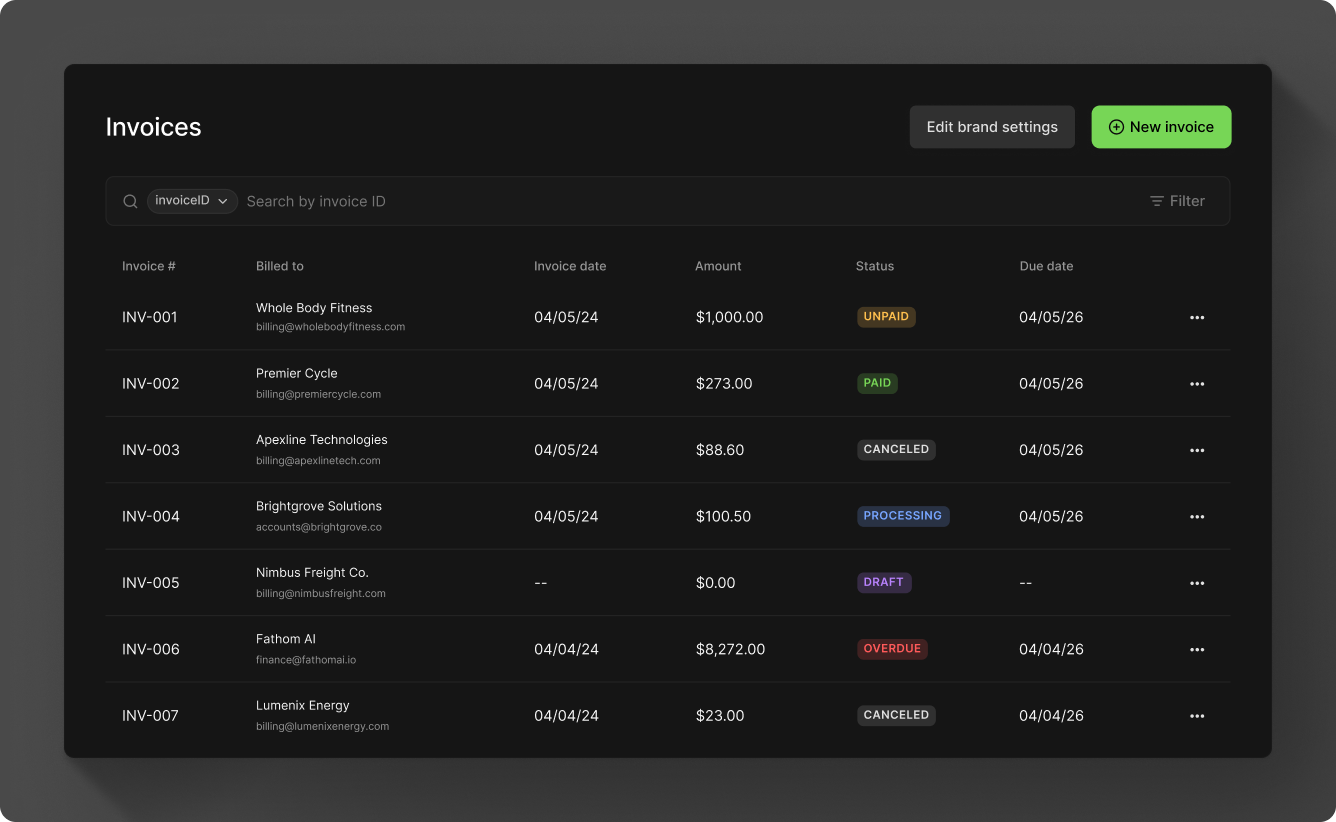
Create an invoice in the Dashboard
To create an invoice, search for the account you want to bill. To add line items, search your product catalog for existing products, or enter custom amounts to bill. You can adjust the quantity per item once it's added to the invoice.
Select an invoice date and a due date (they do not have to be the same date), and include a memo for the description if desired. Optionally, add tip or surcharge amounts. If surcharging is enabled for credit card transactions, the account must follow card brand caps, as well as additional card network rules and state and federal regulations. See the surcharges guide for details on compliance, disclosures, and regulations.
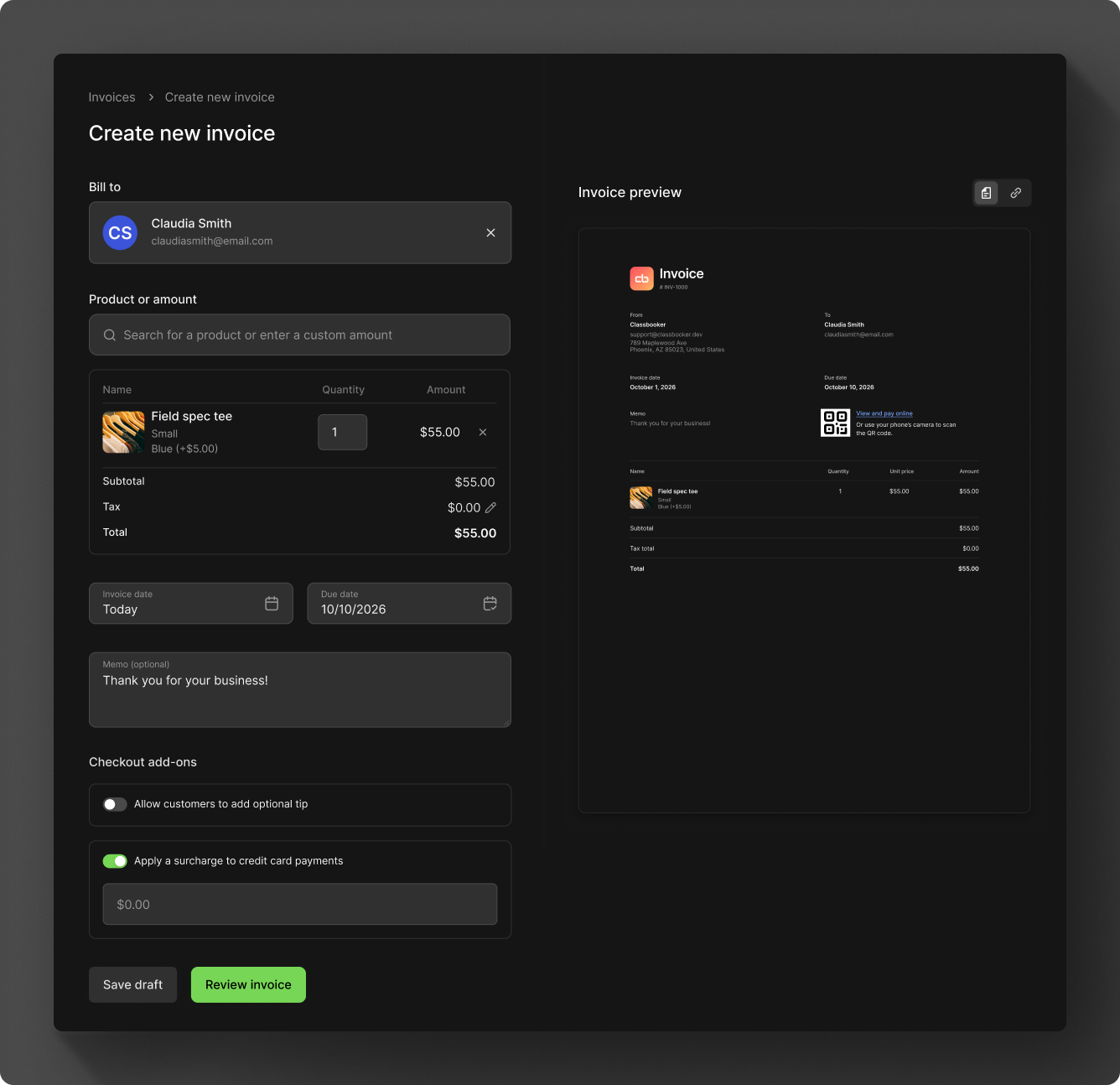
Once the form is filled out, you can save the invoice as a draft, or review it to send out. Use the switcher to view a preview of the invoice PDF and the associated payment link.
Review and send
Review the invoice details, then send the invoice or save it as a draft. When an invoice is sent, Moov automatically creates a secure, single-use payment link scoped to that invoice and customer.
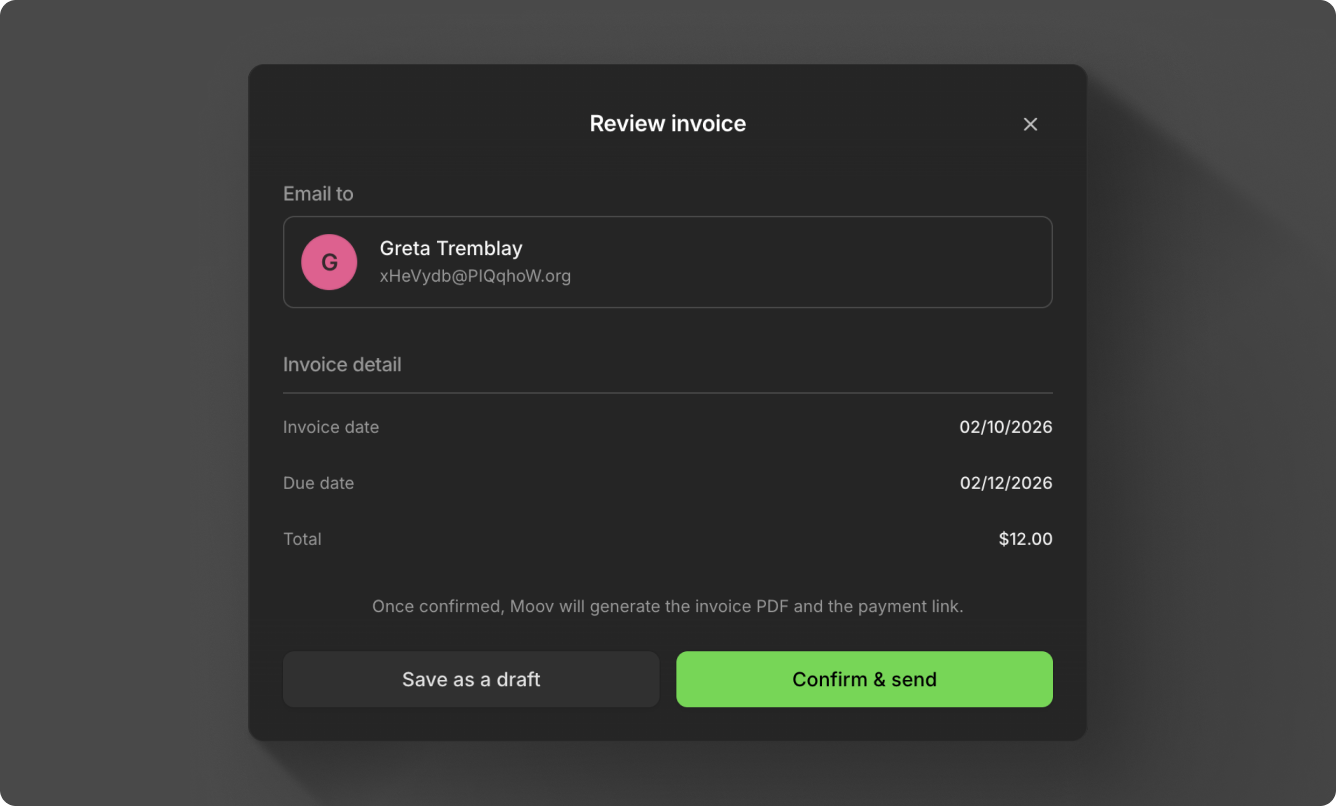
Only invoices in the draft, unpaid, or overdue status can be edited, and the due date can only be changed while the invoice is a draft. Draft invoices can be deleted; cancel a sent invoice instead.
Webhooks
Subscribe to the following webhook events, which will provide you with relevant invoice updates:
invoice.creatednotifies you when an invoice was successfully createdinvoice.updatednotifies you when an invoice was updated