Support tickets
Customers can access Moov support two ways: through an integration built with our support ticket API or, if users are signed in to the Dashboard, they can chat with Moov support or open a ticket through the Dashboard support widget.
Only partner accounts and merchants onboarded via hosted onboarding have access to the Dashboard. To give other merchants direct access to Moov support, build an integration within your app with the support ticket API.
When a support ticket is opened, it creates an issue tied to the Moov account that requests it. You are able to view and track all issues for your connected accounts through the Dashboard, and close tickets once issues have been resolved. Note, only production accounts will be able to access customer support.
To know when a ticket changes without polling, subscribe to the ticket.created, ticket.updated, and ticket.messageAdded webhook events.
Dashboard support widget
You can find the chat icon from within any Dashboard view. Clicking on the chat icon opens up the support modal where you can start a chat with Moov's support team or open a support ticket. You also have access to an AI search query and helpful links.
Open the chat to reach a person on Moov's support team. Chat is available to partner accounts and to merchants onboarded through hosted onboarding.
Ticket types
Partners and merchants can submit tickets for the following support types:
- Problem: Technical issues, such as bugs or difficulty working with our API or Dashboard. It's most helpful to provide the steps or flow that led you to encounter the issue.
- Feedback: Feature requests, such as improvements to existing features or brand new features. It's most helpful to provide how you would use a feature or why it's important.
- Question: Any other question that may not fit into a problem or feedback scenario.
Manage tickets
Create a new issue
You can use the POST support ticket endpoint to allow a customer to send Moov a titled message along with their contact info.
curl -X POST "https://api.moov.io/accounts/{accountID}/tickets" \
  -H "Authorization: Bearer {token}" \
  -H "x-moov-version: v2026.07.00" \
  --data '{
    "body": "Message body",
    "title": "Message title",
    "contact": {
      "email": "melany.roberts@yahoo.com",
      "name": "Melany Roberts"
    }
  }'
Retrieve a support ticket
Once the issue has been created, you can retrieve the issue with the GET support ticket endpoint.
curl -X GET "https://api.moov.io/accounts/{accountID}/tickets/{ticketID}" \
  -H "Authorization: Bearer {token}" \
  -H "x-moov-version: v2026.07.00"
The response will include the original support message as well as other relevant data.
{
  "ticketID": "string",
  "number": 1,
  "title": "string",
  "contact": {
    "email": "melany.roberts@yahoo.com",
    "name": "Melany Roberts"
  },
  "status": "new",
  "createdOn": "2025-08-24T14:15:22Z",
  "updatedOn": "2025-08-25T11:00:00Z",
  "latestMessageOn": "2025-08-25T11:00:00Z"
}
View support ticket messages
From the connected account's Support tab, view the messages between the account and Moov support.
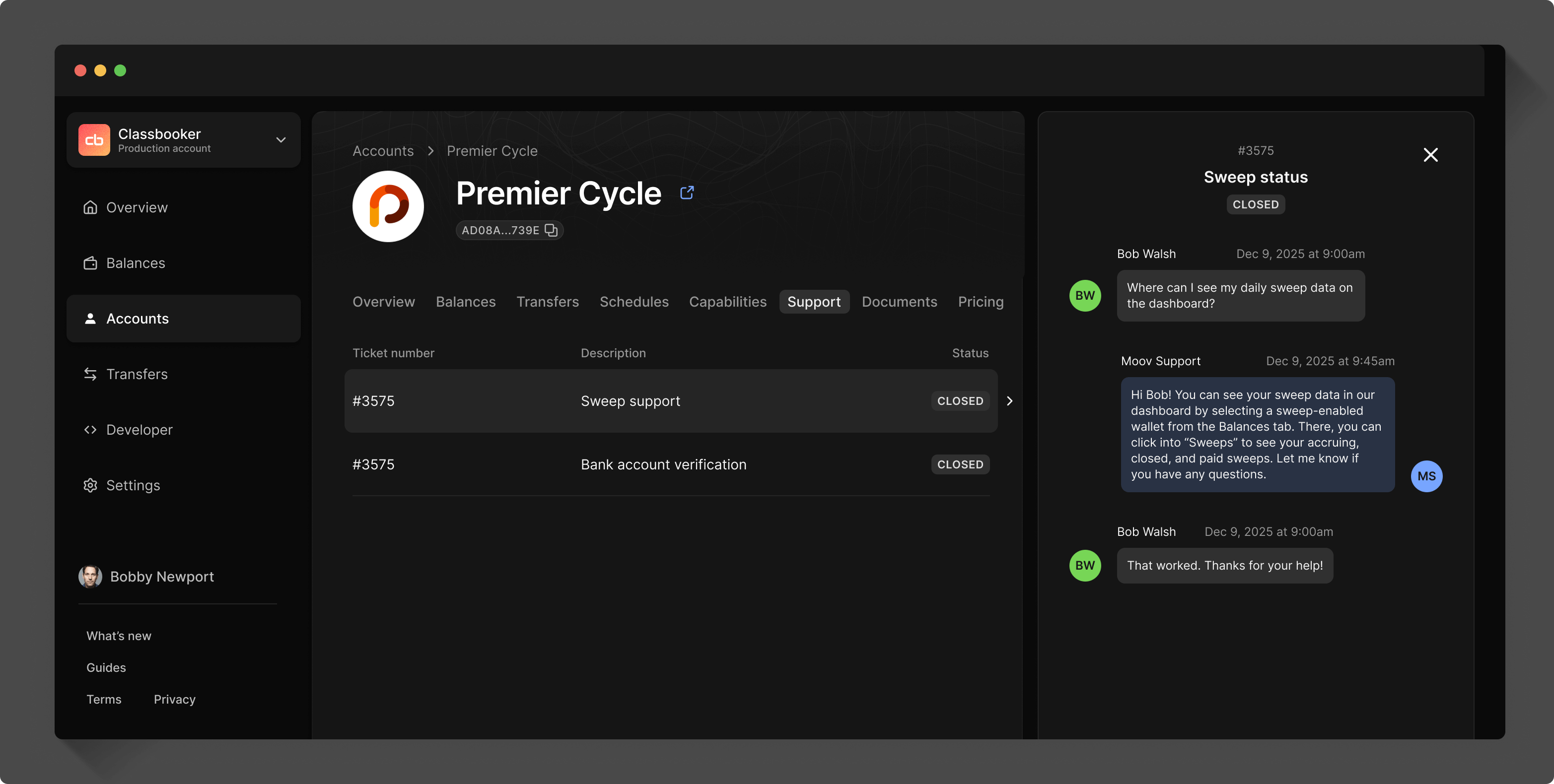
You can retrieve the messages between the customer and Moov support using the list support ticket messages endpoint.
curl -X GET "https://api.moov.io/accounts/{accountID}/tickets/{ticketID}/messages" \
  -H "Authorization: Bearer {token}" \
  -H "x-moov-version: v2026.07.00"
You'll receive a response with all messages associated with the support ticket.
[
  {
    "author": "Melany Roberts",
    "body": "First message",
    "sentOn": "2025-08-24T14:15:22Z"
  },
  {
    "author": "Melany Roberts",
    "body": "Follow up message",
    "sentOn": "2025-08-25T11:00:00Z"
  }
]
Close a support ticket
You can update the support ticket's status to closed when the issue has been resolved using the PATCH support ticket endpoint.
curl -X PATCH "https://api.moov.io/accounts/{accountID}/tickets/{ticketID}" \
  -H "Authorization: Bearer {token}" \
  -H "x-moov-version: v2026.07.00" \
  --data '{
    "status": "closed"
  }'