Create & manage transfers
Start a transfer
The source and destination payment methods you choose set the rail, and with it the cost, speed, and risk. See choose a payment method to compare them.
Create a transfer with POST /accounts/{accountID}/transfers (API reference), where accountID is your partner account. Two rules apply to every transfer:
- A
2xxresponse means Moov accepted the transfer, not that money moved. Don't ship goods or mark an invoice paid until the transfer reaches the status that matters for you. See create transfer responses. - Send an
X-Idempotency-Keyheader. It's required, and it stops a retried request from creating a second transfer. See retry safely.
Retry safely
An idempotency key makes a request safe to retry: sending it again returns the original result instead of charging someone twice. These endpoints require an X-Idempotency-Key header:
POSTCreate transferPOSTRefund transferPOSTCancel or refund a card transfer
Generate the key yourself and make it deterministic, so a retry of the same action sends the same key: a unique ID from your system of up to 36 characters, or a UUID built from the action's identifiers (Moov supports UUID v5). Keys don't expire. A second request with a key Moov has already seen returns a 409 with the original transfer in the body; use that transfer, and never retry with a new key.
Get transfer options
Not every source and destination pair is valid, and what's available depends on each account's capabilities. The transfer options POST endpoint returns the valid combinations, accounting for network restrictions such as maximum amounts. Use it to show a payer or payee a menu of ways to move money.
- Send an
accountIDfor the source or destination to list its valid payment methods. - Add a
paymentMethodIDto narrow the results. For example, if you know the source is a card, the response lists the destinations that card can pay.
curl -X POST "https://api.moov.io/accounts/{accountID}/transfer-options" \
  -H "Authorization: Bearer {token}" \
  -H "x-moov-version: v2026.07.00" \
  --data-raw '{
    "amount": {
      "value": 100,
      "currency": "USD"
    },
    "destination": {
      "accountID": "string"
    },
    "source": {
      "accountID": "string"
    }
  }'
mc, _ := moov.NewClient()

// your partner accountID
var accountID string

mc.TransferOptions(ctx, accountID, moov.CreateTransferOptions{
  Source: moov.CreateTransferOptionsTarget{
    AccountID: "string",
  },
  Destination: moov.CreateTransferOptionsTarget{
    AccountID: "string",
  },
  Amount: moov.Amount{
    Currency: "USD",
    Value:    1,
  },
})
const result = await moov.transfers.generateOptions({
  accountID: "deafe3cf-31d4-4dcc-8176-3d6bf8bb4f04",
  createTransferOptions: {
    source: {},
    destination: {},
    amount: {
      currency: "USD",
      value: 1204,
    },
  },
});
res = moov.transfers.generate_options(account_id="deafe3cf-31d4-4dcc-8176-3d6bf8bb4f04", source={}, destination={}, amount={
    "currency": "USD",
    "value": 1204,
})
res = s.transfers.generate_options(account_id: 'deafe3cf-31d4-4dcc-8176-3d6bf8bb4f04', create_transfer_options: Models::Components::CreateTransferOptions.new(
  source: Models::Components::SourceDestinationOptions.new,
  destination: Models::Components::SourceDestinationOptions.new,
  amount: Models::Components::Amount.new(
    currency: 'USD',
    value: 1204
  )
))
CreateTransferOptionsResponse res = sdk.transfers().generateOptions()
        .accountID("deafe3cf-31d4-4dcc-8176-3d6bf8bb4f04")
        .createTransferOptions(CreateTransferOptions.builder()
            .source(SourceDestinationOptions.builder()
                .build())
            .destination(SourceDestinationOptions.builder()
                .build())
            .amount(Amount.builder()
                .currency("USD")
                .value(1204L)
                .build())
            .build())
        .call();
var res = await sdk.Transfers.GenerateOptionsAsync(
    accountID: "deafe3cf-31d4-4dcc-8176-3d6bf8bb4f04",
    body: new CreateTransferOptions() {
        Source = new SourceDestinationOptions() {},
        Destination = new SourceDestinationOptions() {},
        Amount = new Amount() {
            Currency = "USD",
            Value = 1204,
        },
    }
);
$createTransferOptions = new Components\CreateTransferOptions(
    source: new Components\SourceDestinationOptions(),
    destination: new Components\SourceDestinationOptions(),
    amount: new Components\Amount(
        currency: 'USD',
        value: 1204,
    ),
);

$response = $sdk->transfers->generateOptions(
    accountID: 'deafe3cf-31d4-4dcc-8176-3d6bf8bb4f04',
    createTransferOptions: $createTransferOptions

);
See payment methods for every valid combination and transfer limits.
List transfers
The list transfers endpoint returns up to count transfers per page, newest first. Offset pagination with skip is limited to a maximum skip of 200,000. To paginate through larger transfer histories, use a cursor instead.
Request the first page without a cursor:
curl -i "https://api.moov.io/accounts/{accountID}/transfers?status=completed&count=200" \
  -H "Authorization: Bearer {token}" \
  -H "x-moov-version: v2026.07.00"
If more transfers are available, the response includes an X-Next-Cursor header:
HTTP/1.1 200 OK
X-Next-Cursor: eyJ2IjoxLCJ0IjoiMjAyNi0wOS0yNVQxMjowMDowMFoiLCJpZCI6IjAwMDAwMDAwLTAwMDAtNDAwMC04MDAwLTAwMDAwMDAwMDAwMSJ9
To get the next page, pass that value as the cursor query parameter. Keep the other query parameters the same:
curl -i "https://api.moov.io/accounts/{accountID}/transfers?status=completed&count=200&cursor=eyJ2IjoxLCJ0IjoiMjAyNi0wOS0yNVQxMjowMDowMFoiLCJpZCI6IjAwMDAwMDAwLTAwMDAtNDAwMC04MDAwLTAwMDAwMDAwMDAwMSJ9" \
  -H "Authorization: Bearer {token}" \
  -H "x-moov-version: v2026.07.00"
Repeat until a response has no X-Next-Cursor header, which means you've reached the last page.
- Use the same filters on every page. Changing filters between pages can skip or repeat transfers.
- Treat the cursor as opaque. Don't parse, build, or modify it.
- Don't combine
cursorwithskip. The request fails with a422error. - Transfers created after you fetch the first page don't appear on later pages.
In the Dashboard
The Transfers section of the Dashboard provides an overview of your account's transfer history. You can create and manage transfers, including reversals, refunds, and cancellations, and view and manage disputes.
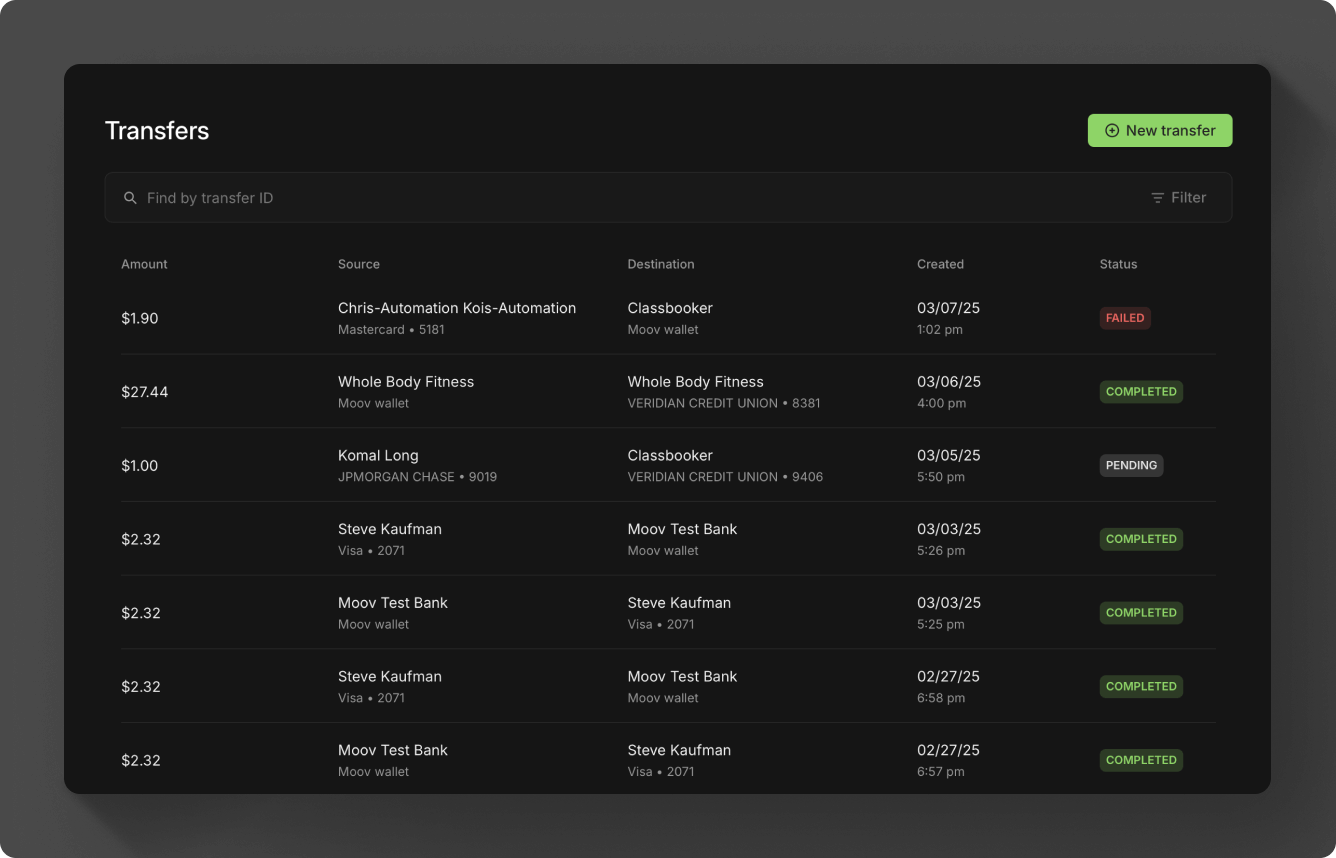
Peek preview
The peek preview shortcut gives you fast access to transfer status and details. Press the space key to toggle the preview on and off. You can move your cursor up and down the transfer list and the preview will update with the corresponding transfer details. The esc key will also dismiss the preview. Press c while the preview is open to copy the transferID to your clipboard.
Create a transfer
Create a transfer between any two Moov accounts by clicking New transfer and choosing Payout or Collect. You can also create a scheduled transfer or recurring transfers. See scheduling for more information.
You'll need to input the following information to create a transfer:
- A product or an amount
- Source
- Destination
Optionally, you can enter:
- Tax amount
- Tip amount
- Surcharge amount (credit card transactions)
- Payout fees
- Recipient fees (payouts)
- Description
- Metadata
- ACH addenda (ACH transfers)
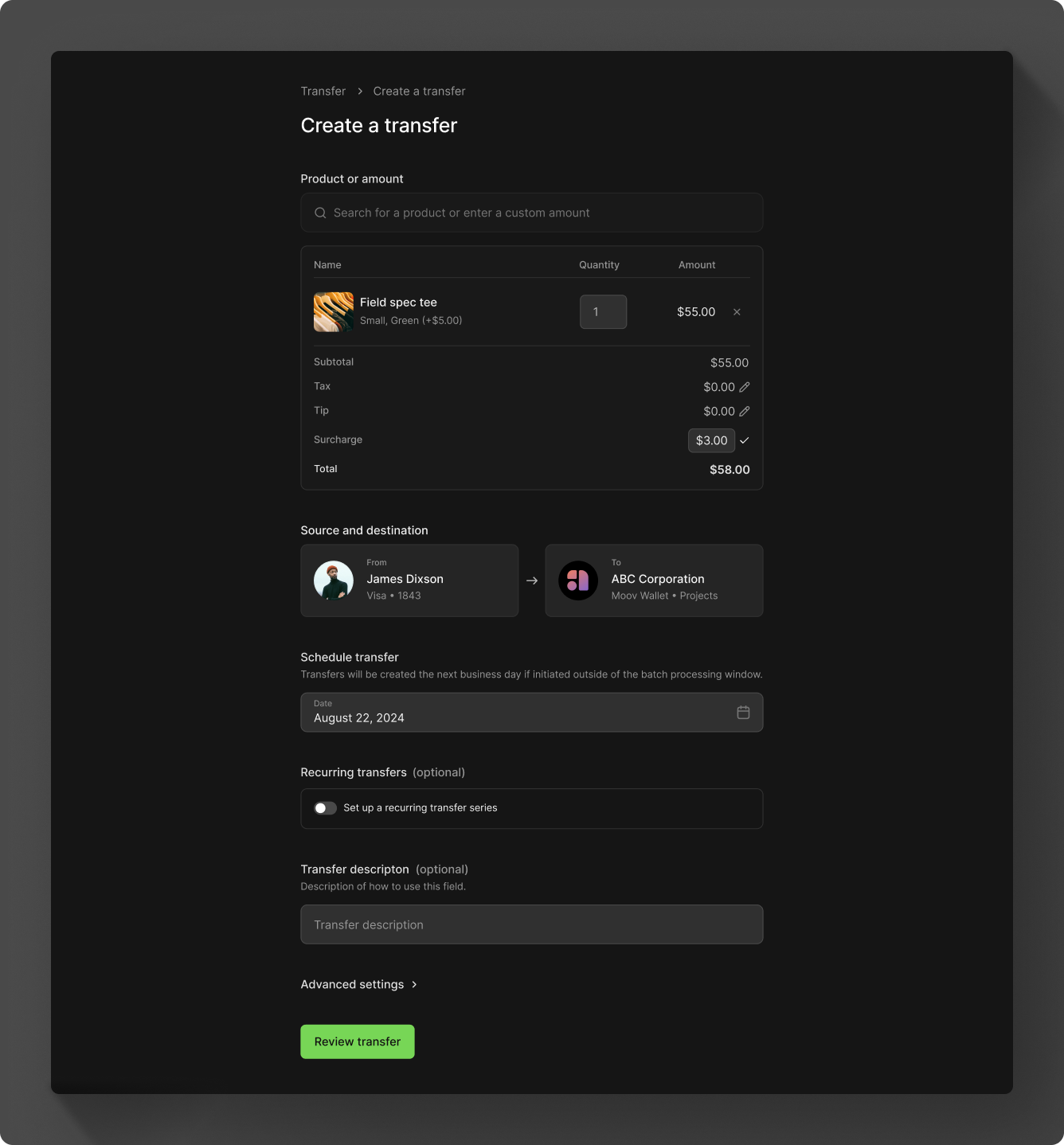
Any business that intends to add a surcharge to credit card transactions must notify Moov 30 days before implementing surcharges. See the surcharges guide for more information.
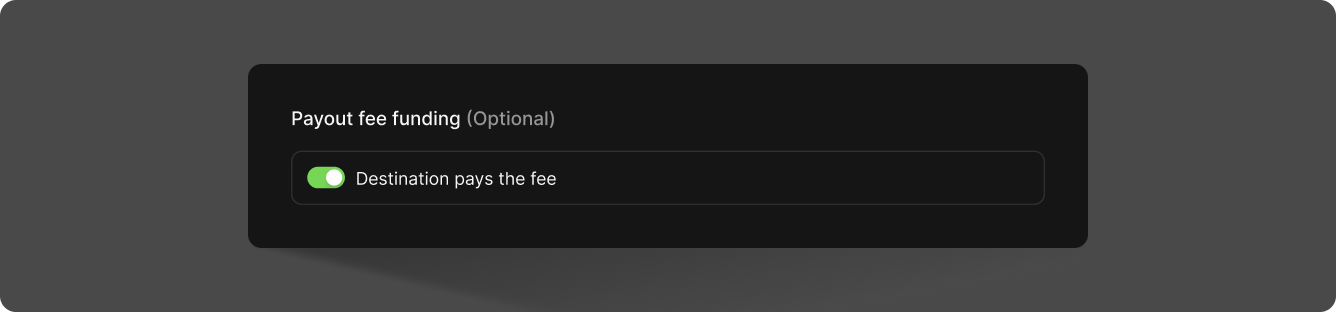
To pass a payout fee along to the recipient, look under Advanced settings when creating the transfer and find the Payout fee funding option. If not set, the source wallet pays the payout fee.
Transfer details
Clicking any transfer will bring you to the Transfer details page, where you can manage and review information about a transfer and its current status.
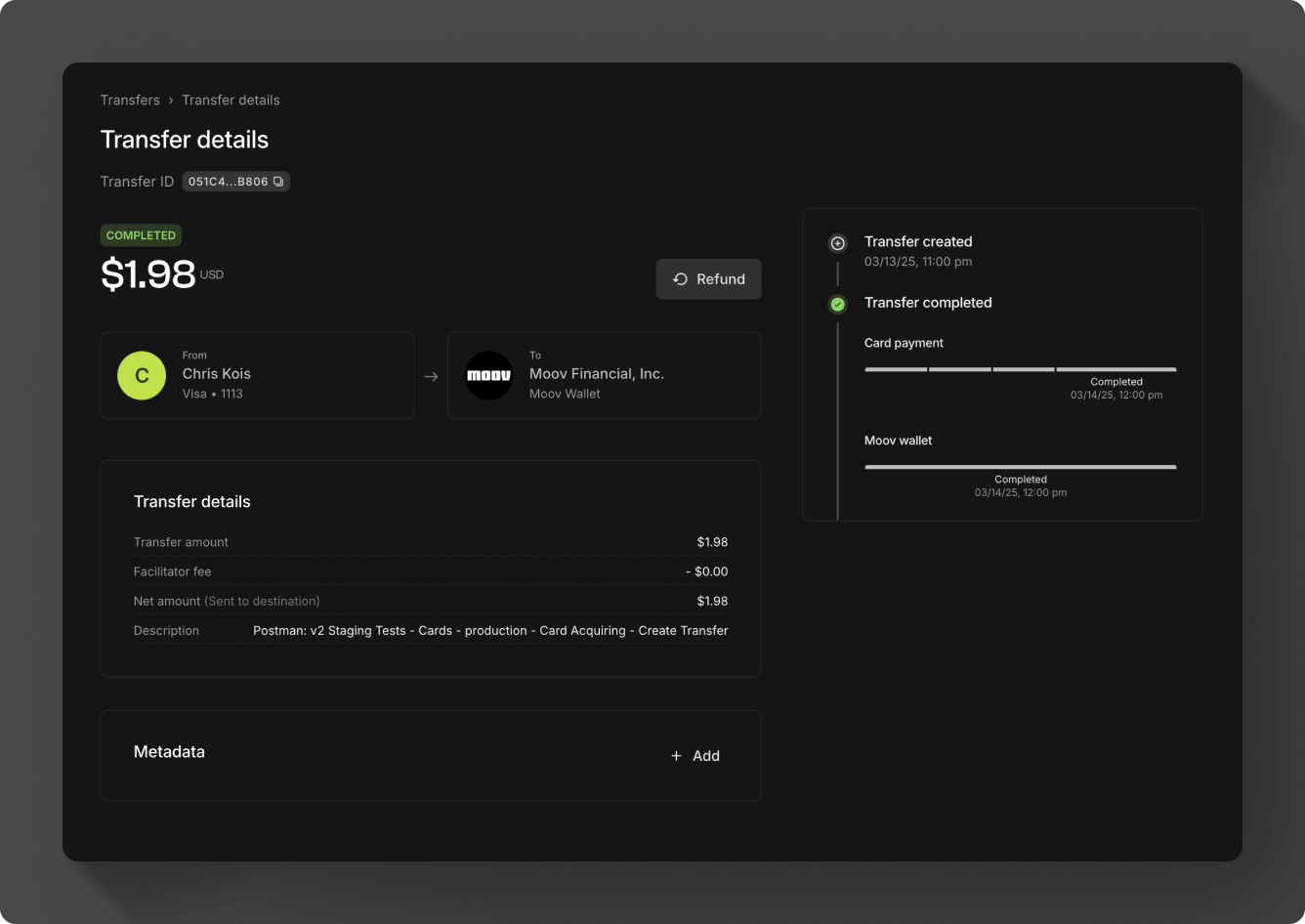
The transfer timeline shows information on each leg of the transfer to give transparency on where the funds are in the process. For example, if a transfer from a bank account to a Moov wallet is created, you'll see the ACH debit information followed by the funds availability in the wallet.