Spending cards beta
Moov enables you to instantly issue virtual cards on the Visa network, empowering a broad range of embedded spending and expense management solutions such as:
- Replacing traditional checks for bill payments
- Providing rapid access to funds from merchant processing
- Facilitating immediate payments to vendors
Spending cards facilitate a specific use case: your Moov account is a platform that enables customers to accept payments and use those funds for business-related purchases and your customer is a business that will use a virtual card to make payments with funds from its Moov wallet.
Navigate to the Spending cards section of the Dashboard to create and manage spending cards.
Prerequisites
- Business customers have been onboarded with the card issuing capability
- Business customer's Moov wallet has been funded with a balance
Create a spending card
A card-issuing wallet is automatically created for each account when the card issuing capability is enabled. Card-issuing wallets can be loaded with funds from another source, typically with a wallet-to-wallet transfer from the default wallet.
Your customer's card-issuing wallet will be used as the funds source for the issued card. Only funds in the card-issuing wallet can be used with issued cards.
When you create a spending card, you can set the following:
| Setting | Description |
|---|---|
| Single use | Set to automatically close the card after the first authorization. Once a card is issued, this setting cannot be changed. |
| Limits | Set limits such as specific amounts or transaction counts for a period of time such as every day or per transaction |
| Category restrictions | Allow or block certain merchant categories such as advertising and gambling |
| Merchant restrictions | Allow or block specific merchants, independent of merchant category restrictions |
| Spend schedule | Set spend schedules such as certain days of the week or a specific time of day |
| Spend cutoff | Set a spend cutoff (expiry) date and time |
View and manage spending cards
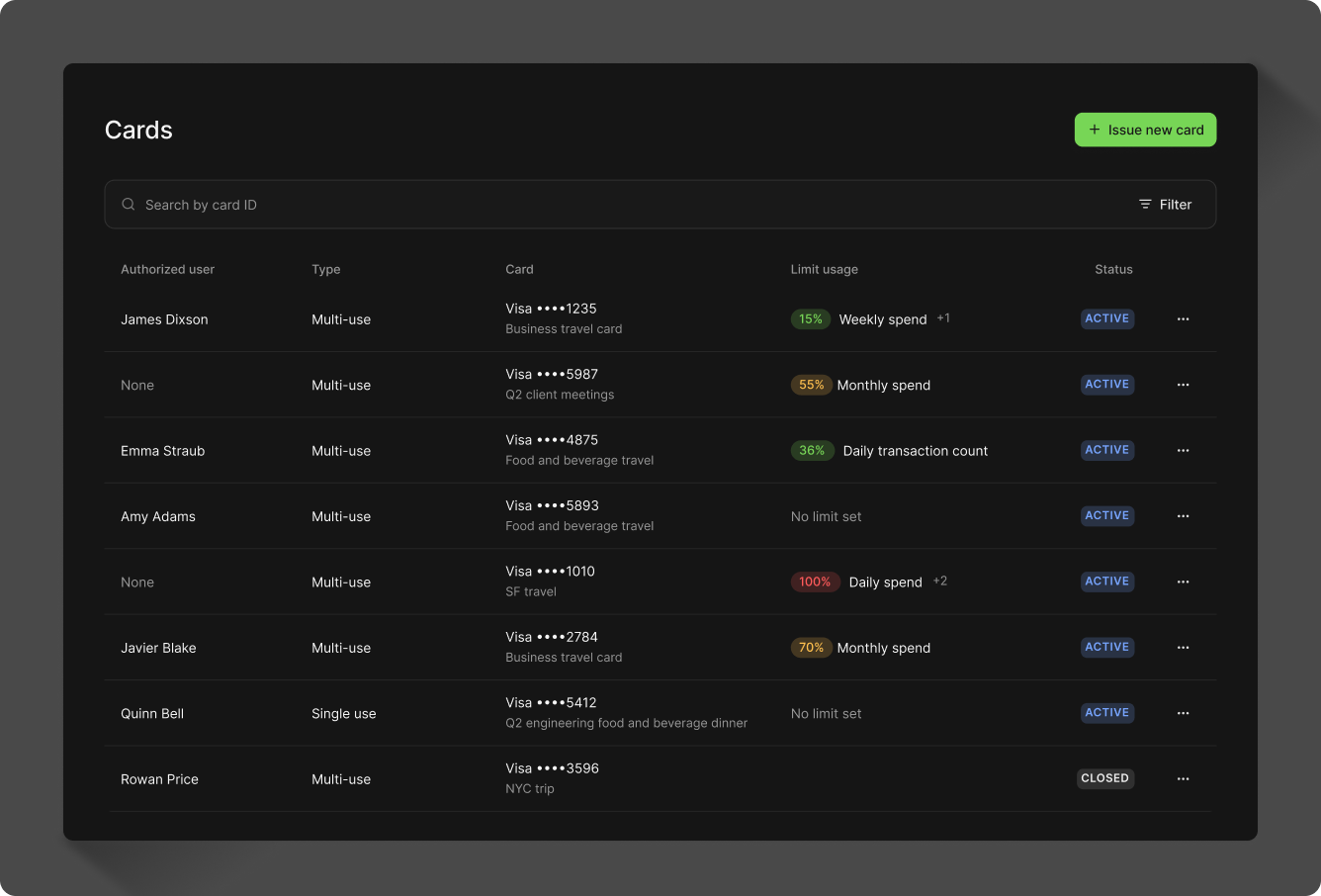
Navigate to Spending cards > Cards to view cards and their authorized users. New authorized users / employees will need to be onboarded to use their card and access the Dashboard.
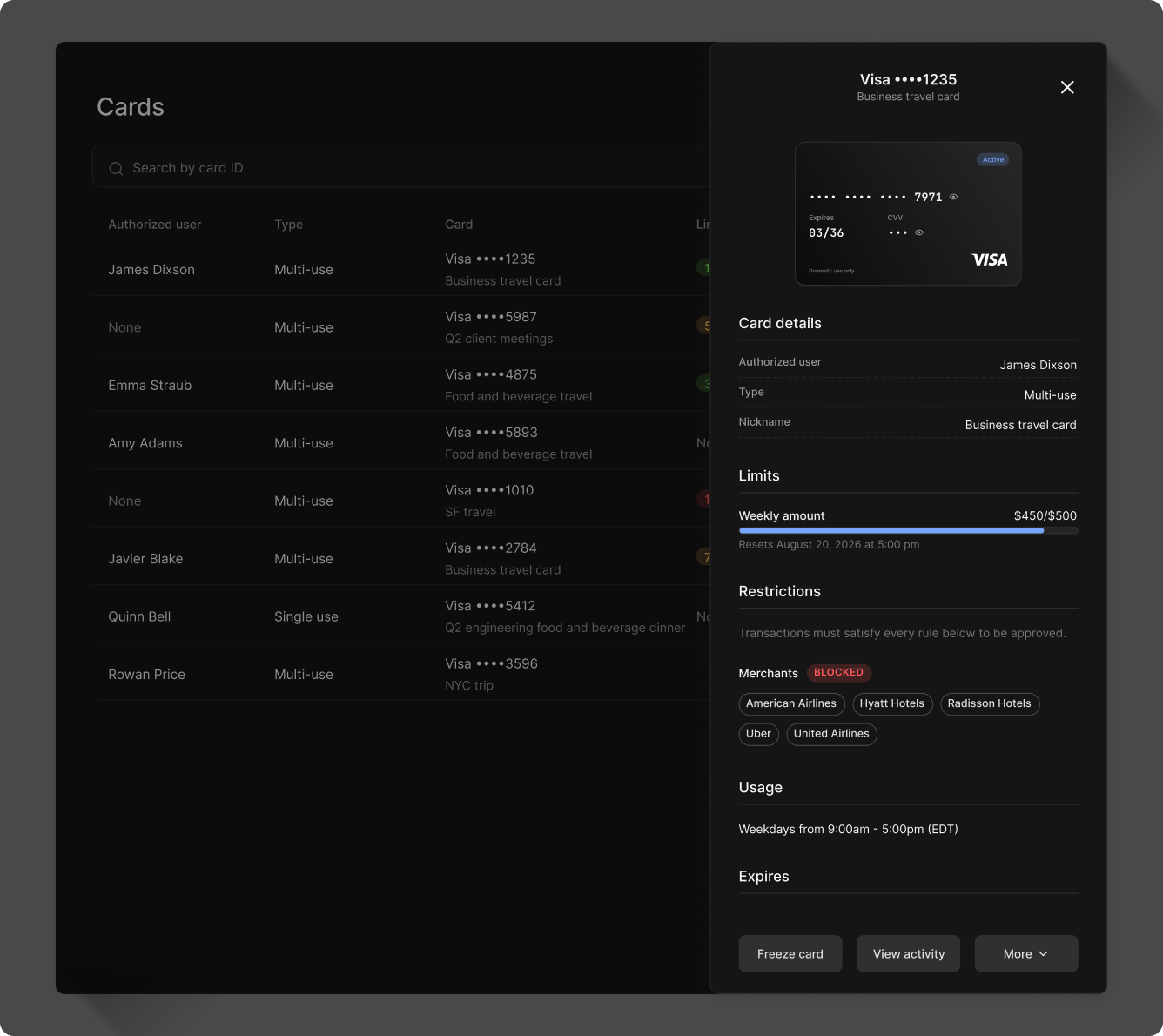
Click on a card to view details like spend controls. Click View activity to view a card's activity.
Freeze a card
If you freeze a card, it temporarily suspends the card and it cannot approve authorizations. A card can be switched between a frozen state and an active state as needed.
Click Freeze on the card details view to freeze a card.
Close a card
Closing a card permanently deactivates it and it can no longer approve authorizations. Click More > Close card on the card details view to close the card.
A card also automatically closes when it expires.
Edit card details
Click More > Edit card details on the card details view to edit a card. You can update the following:
- Card name
- Controls (limits, restrictions, schedules)
- Spend cutoff (expiry date)
Note - once a card is issued, the single-use setting cannot be changed.
View card activity
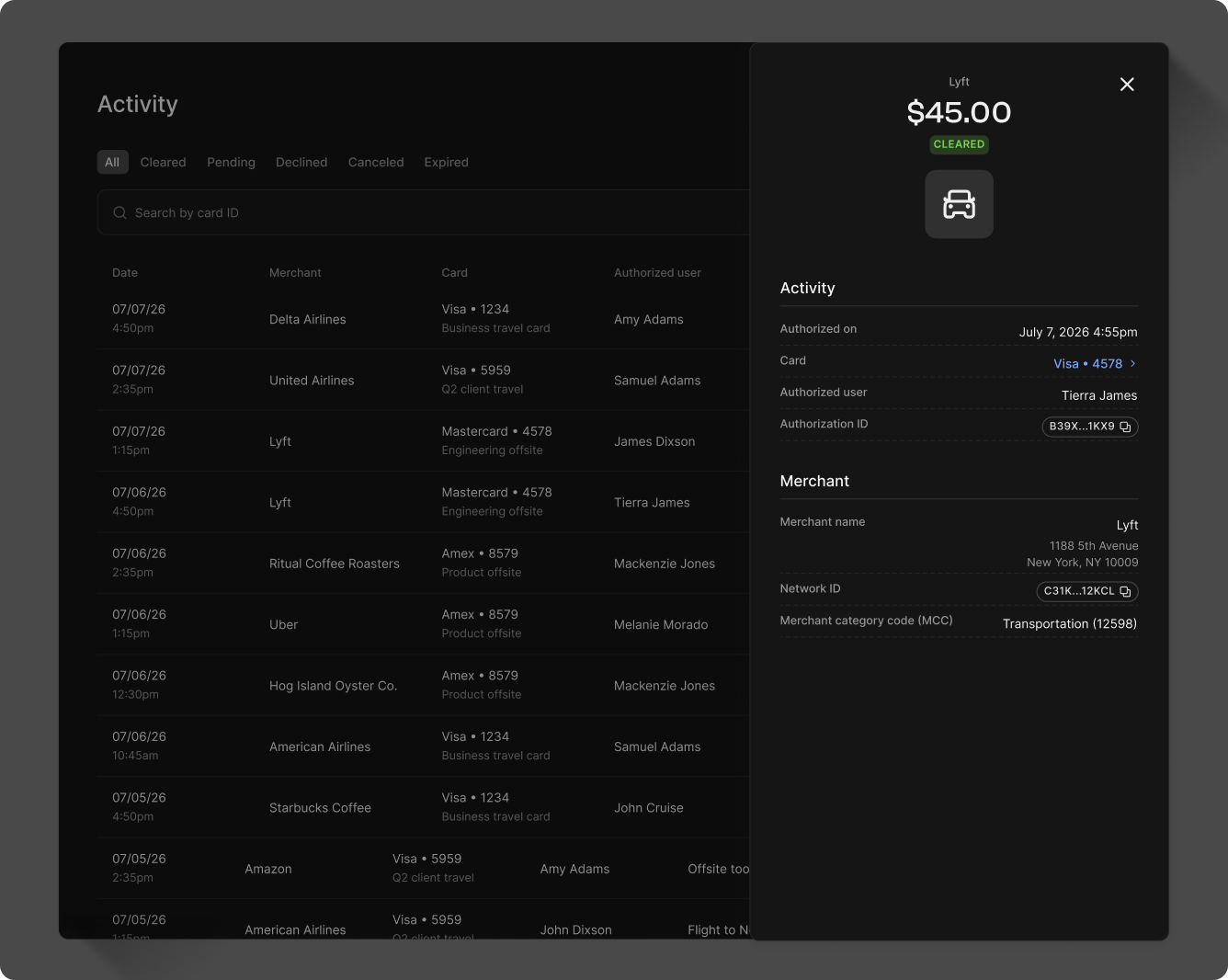
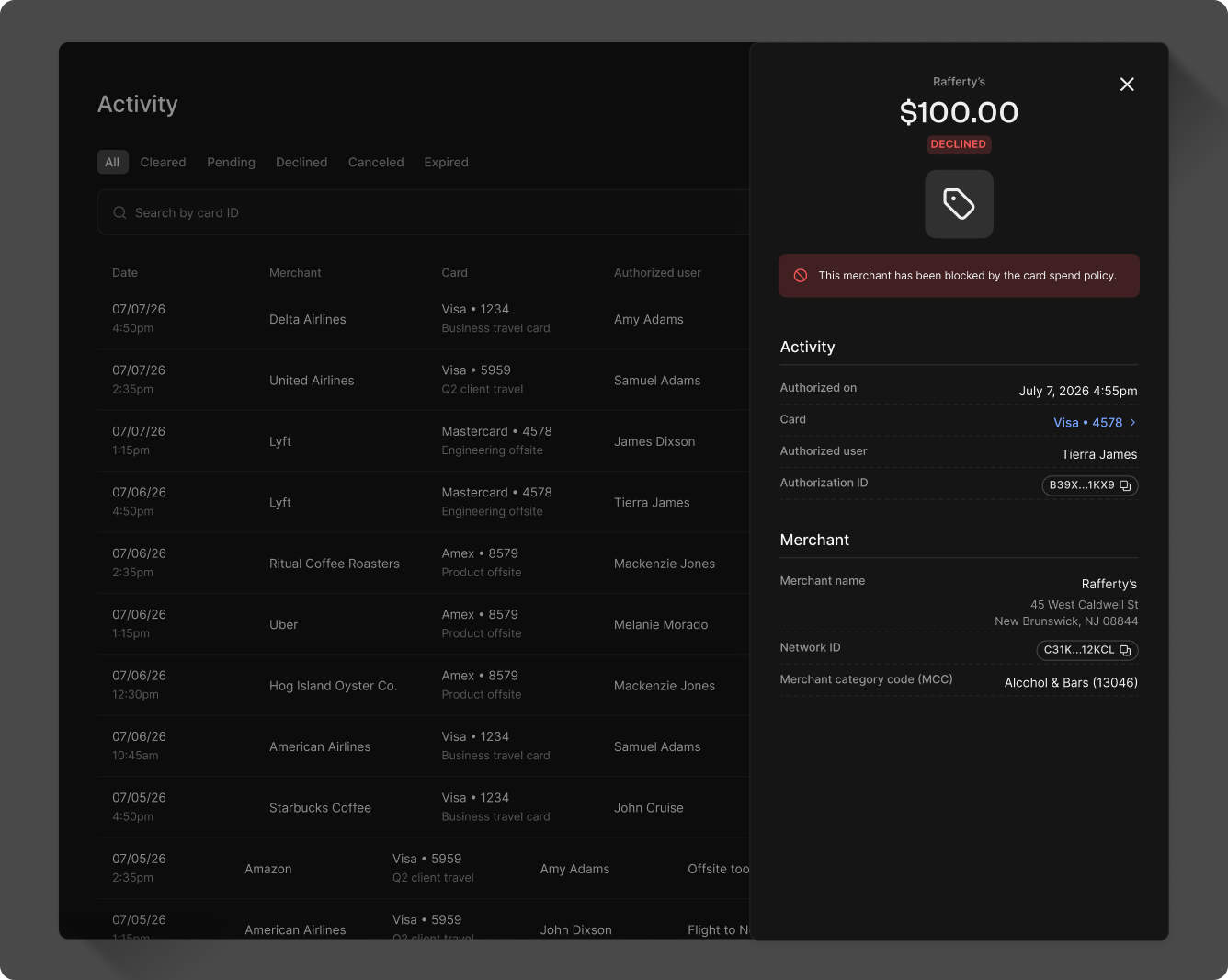
Navigate to Spending cards > View activity to view card activity. Search by card ID or sort by status:
- Cleared
- Pending
- Declined
- Canceled
- Expired
Click on a row item to view activity details. The tabs below show examples of a cleared and declined transaction.