Schedules
With scheduled transfers, you can create a schedule for a variety of purposes, such as sending payments, setting up a subscription or financing.
Navigate to Transfers > Schedules in the Dashboard. A scheduled transfer can be a single transfer scheduled in the future, or a series of recurring transfers.
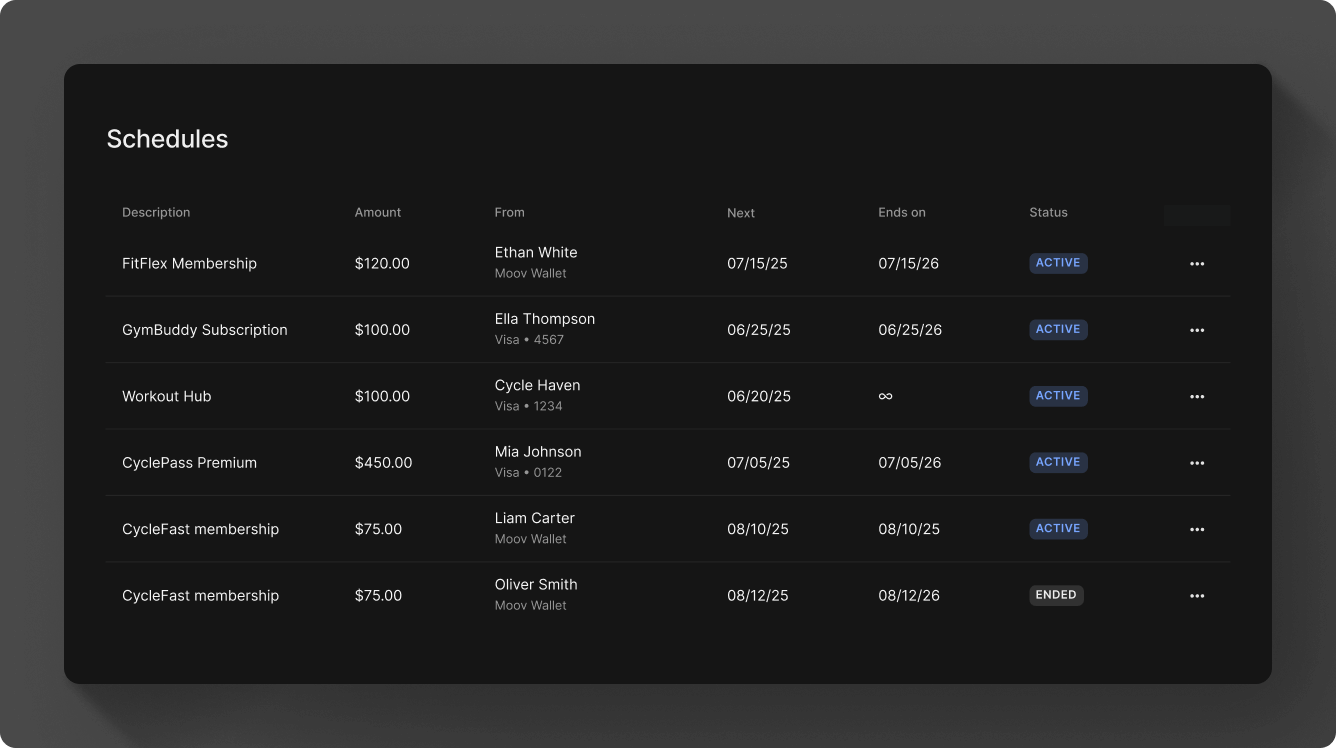
Once scheduled transfers have been set up, the main schedules view will provide the following information:
- Transfer description, if provided
- Amount
- The source & destination accounts
- The next scheduled transfer date
- When the schedule cycle ends
Scheduled and recurring transfers are optional. If you don't select a future date or set up a recurring schedule when creating a transfer, the transfer will be created immediately and processed under normal batch processing windows.
Create a schedule
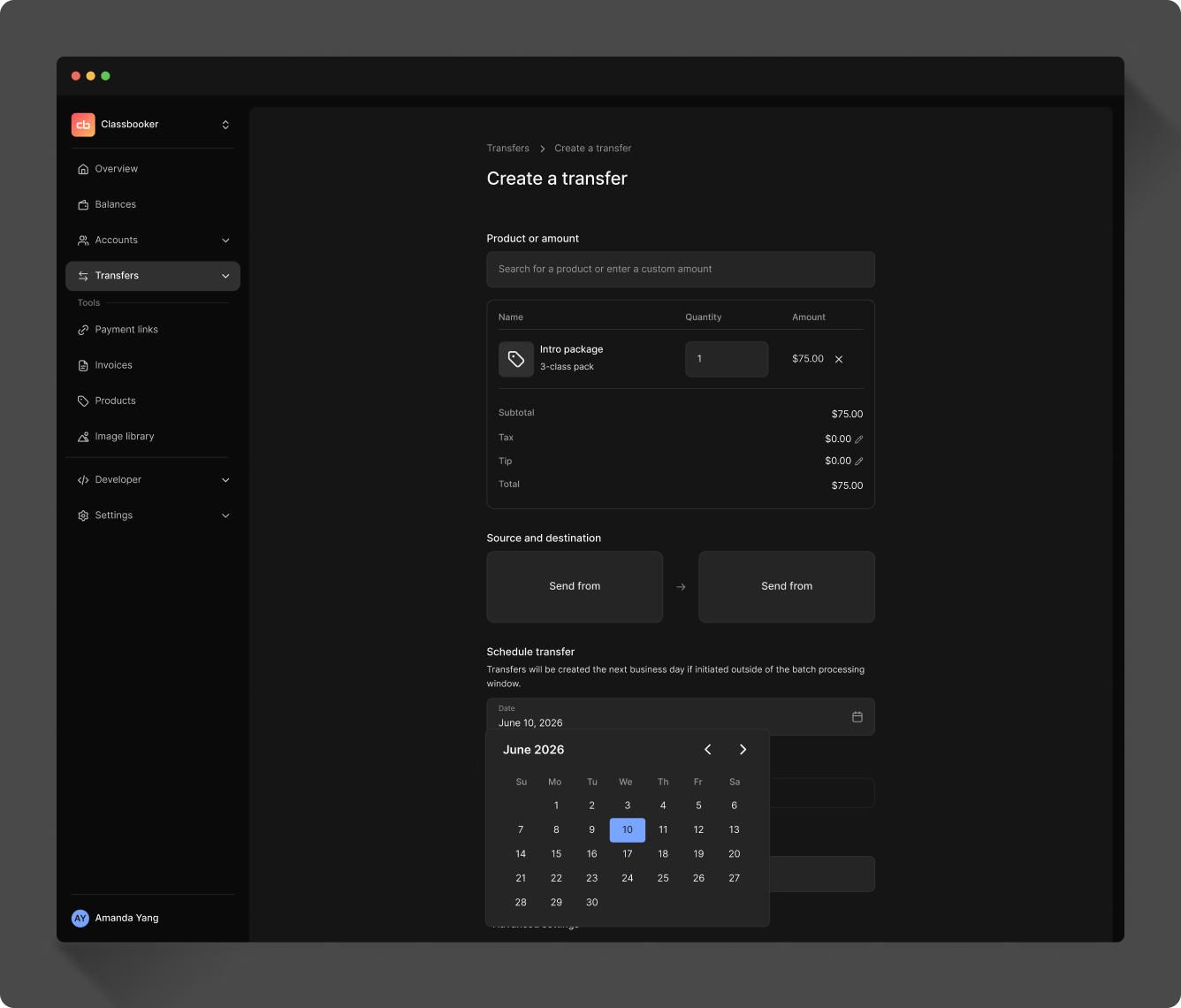
Click the New schedule button to create a new transfer with a schedule. Select a product or enter an amount and provide the source and destination information. You'll have two options to create a schedule. With both options, transfers will be created the next business day if initiated outside of the batch processing window.
- Select a date in the future to send a single transfer. Under Schedule transfer use the selector to pick a future date on the calendar.
- Set up recurring transfers on a daily, weekly, monthly, or yearly schedule. Under Recurring payments select the recurrence cadence and choose when you want the recurring payments to end, or select Never to keep the payments recurring indefinitely.
Send a receipt
Once a scheduled or recurring transfer is processed, view the individual transfer and hit Send receipt.
You can find the individual transfer within the main Transfers view. Additionally, within the Schedules view, click on a schedule to see a list of all associated transfers and view the individual transfer to send a receipt.
View details
Click on a scheduled transfer row to view the details, such as the source, destination, and when the schedule was originally created.
Within the details view, you can also send a receipt and cancel the schedule.
Every scheduled or recurring transfer will have a schedule ID. Copy the schedule ID from the menu in the main schedules row view, or from within the scheduled transfer details.
Cancel a schedule
Click on the menu at the end of a transfer row to cancel the schedule or copy the schedule ID. Only the account that creates the schedule can cancel it. For example, if a merchant creates a schedule, only the merchant account is able to cancel that schedule.